 Video Delay
Set up your tennis replay station
Decide between a side and rear view
Choose the angle that answers your current visual question and keep it fixed for a block of serves. A rear view and a side view show different relationships; neither should be treated as a complete technical assessment.
Check the toss and racket tip
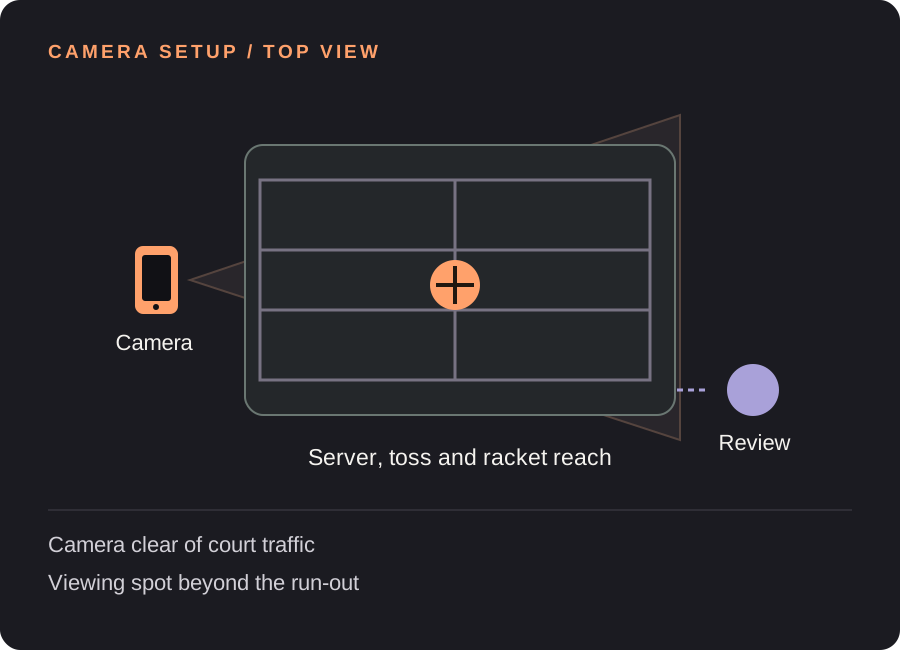
Do a slow rehearsal with the highest reach and the full finish. Leave headroom for the toss and space for the racket, as well as the player’s feet. Check the image after choosing the camera orientation and zoom.
Place the screen beyond the movement area
Keep the support outside the player’s run-out, ball path and neighboring court traffic. Decide where to review before starting. If you have to retrieve balls before looking, measure that actual interval rather than choosing a short delay by habit.
Test at the pace of the drill
For a 6-second motion and 5 seconds to reach the screen, start around 13 seconds including 2 seconds of margin. For a short fed-ball drill, retime the full block you want to see. A long rally is better kept with a normal recording.
Find your starting delay. Movement time + time to finish and look + a little margin. Open the free delay planner with this guide’s example. These are starting examples, not measured recommendations for every athlete or room.
A useful loop for the next few attempts
Choose one observable detail
Use a question from your coach or practice notes, then hold the camera angle and drill constant. Changing the angle, target and checkpoint at once makes the replay difficult to interpret.
Finish the point or drill before watching
Keep attention on the court until the movement has ended. Increase the delay if needed so the replay fits the drill, rather than looking toward a screen during a live exchange.
Save the complete serve
Let the finish appear on the delayed screen before saving. Choose a saved-rep length that includes the preparation and finish, then review it slowly or step through individual frames.
Need the controls first? Walk through the app screens, or read how to save and review a rep.
When the setup does not quite work
| What you notice | What to change |
|---|---|
| The toss leaves the frame | Add headroom and test the highest point before the next block. |
| The replay has passed by the time I get back | Include the full return or ball-retrieval interval in the delay. |
| I want line calling or serve-speed data | Use equipment designed for those measurements. This app shows camera replay; it does not make line calls or measure speed. |
Tennis replay questions
Can it replay groundstrokes too?
Yes. Choose a controlled drill and frame the full hitting area. Retime the delay for that drill instead of reusing a serve setting automatically.
Does it track the ball or call lines?
No. Video Delay does not provide ball tracking, automatic line calling, racket-speed measurement or a serve score.
Can I save an entire match?
No. Saved reps are 5, 10, 15 or 30 seconds. Use a normal camera recording if you need a complete match or long rally archive.
Before the next session
This guide covers camera setup and review workflow. It is not a sport lesson or a claim that a specific setup improves performance. Clips, camera angles and manual drawings need your own interpretation.
Make the next rep easier to see.
Video Delay runs on iPhone and iPad with iOS or iPadOS 17 or later. Choose a 1–60 second delay, then save selected 5, 10, 15 or 30 second reps for slow motion, frame stepping and manual drawings. No automatic form score.
Get Video Delay on the App StoreOne-time paid download. Apple shows your local price before purchase. No subscription or in-app purchases. See the illustrated app walkthrough.