 Video Delay
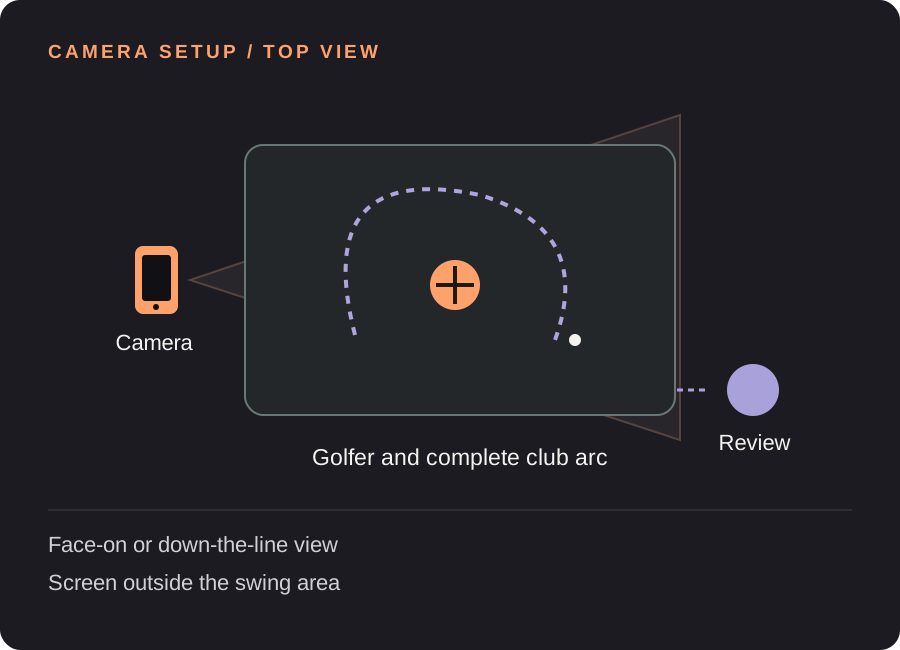
Set up your golf replay station
Choose one camera view
Use a face-on or down-the-line position agreed with your coach or chosen for your own visual question. These views show different things. Pick one for the session and keep camera height, position and zoom the same when comparing attempts.
Keep the club and follow-through visible
Check the top of the swing and the full finish with a slow rehearsal. Leave room beyond the clubhead, not only around your body. Place the phone outside the club arc and where it cannot be struck by a ball or another golfer.
Allow time to finish the shot
Time the complete motion and the moment you can comfortably look at the screen. A 4-second rehearsal plus 3 seconds to settle and look, with 2 seconds of margin, suggests a 9-second starting delay. Adjust using a real test at your normal pace.
Use a stable view in changing light
A fixed support makes movement easier to compare. Check the screen in range lighting before you start. If the subject is silhouetted or the club disappears in blur, improve the lighting or adjust available camera settings instead of assuming slow motion will recover missing detail.
Find your starting delay. Movement time + time to finish and look + a little margin. Open the free delay planner with this guide’s example. These are starting examples, not measured recommendations for every athlete or room.
A useful loop for the next few attempts
Choose a checkpoint before the ball
Decide which part you want to see, such as the position your coach asked you to notice. Repeatedly changing the question makes it harder to use immediate visual feedback.
Complete the swing before reviewing
Let the shot finish and keep your attention on the practice area until it is appropriate to look back. If the moment has already passed on the screen, increase the delay rather than rushing your finish.
Save one swing for a closer look
Wait until the finish appears on the delayed view, then tap Save rep. Open the saved clip for slower playback, frame stepping or manual drawings. Keep the original camera angle in mind when interpreting lines or angles.
Need the controls first? Walk through the app screens, or read how to save and review a rep.
When the setup does not quite work
| What you notice | What to change |
|---|---|
| I only see the finish | Increase the delay so the beginning reaches the screen after you are ready to watch. |
| The club leaves the frame | Rehearse the full arc while checking framing; move the camera instead of cropping tightly. |
| I need a library of imported swing videos | Use a saved-video analysis workflow. Video Delay is primarily the live replay station; SwingDraw is a separate app for golf video review. |
Golf replay questions
Does it track the ball or measure club speed?
No. Video Delay does not provide a launch monitor, ball-flight tracking, club-speed measurement or an automatic swing score.
Can I use slow motion?
Saved reps support slow motion and frame stepping. Capture rates depend on the device and selected camera; 240 fps is not available on every setup.
Is this the same as SwingDraw?
No. Video Delay is for an immediate delayed camera view during practice. SwingDraw is a separate golf video analysis app. Choose the workflow you need rather than treating the apps as interchangeable.
Before the next session
This guide covers camera setup and review workflow. It is not a sport lesson or a claim that a specific setup improves performance. Clips, camera angles and manual drawings need your own interpretation.
Make the next rep easier to see.
Video Delay runs on iPhone and iPad with iOS or iPadOS 17 or later. Choose a 1–60 second delay, then save selected 5, 10, 15 or 30 second reps for slow motion, frame stepping and manual drawings. No automatic form score.
Get Video Delay on the App StoreOne-time paid download. Apple shows your local price before purchase. No subscription or in-app purchases. See the illustrated app walkthrough.