davidb.app / Video Delay / Walkthrough
How Video Delay works, step by step
By David Balderston, developer of Video Delay ·
Set up your phone, watch each rep a few seconds after you do it, then save the ones worth a closer look. These eight steps cover the whole loop, from where to put the phone to slow motion and drawing.
Walkthrough steps
-
Drawing, not a photo. Down-the-line golf view shown. Face-on works the same way. Step 1 of 8
Prop up the phone where it can see the whole rep
Lean your iPhone or iPad against a bag, a fence or a tripod, outside the path of people, balls and equipment. Leave room around the edges so the whole movement stays in frame.
For golf, try behind you (down the line) or facing you at about hip height. Open Video Delay, allow camera access and choose the front or back camera. Keep the phone in the same spot so you're comparing like with like.
More detail: hands-free practice setup.
-
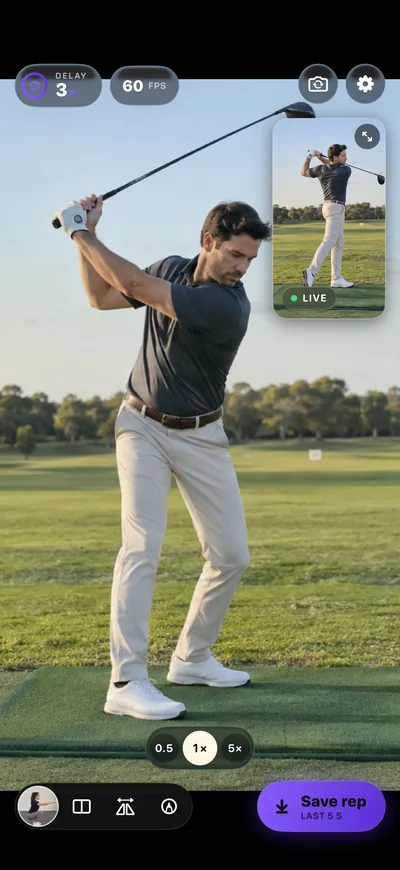
Saved app screen, sample image. 1 Delay setting 2 Live camera window Step 2 of 8
Pick a delay, do the rep, then look up
Choose a delay from 1 to 60 seconds: half-second steps up to 10 seconds, then whole seconds. Pick enough time to finish the movement and turn toward the screen. Let the delay fill, then do a test rep.
The big picture is the delayed replay. In this screen it's 3 seconds behind, so it still shows the backswing. The small Live window shows what the camera sees now, here the follow-through. The replay keeps running, so there's no record button to press between reps.
Starting points: golf or a batting tee 5–8 s, a lift 10–20 s, a dance combination 15–30 s.
-
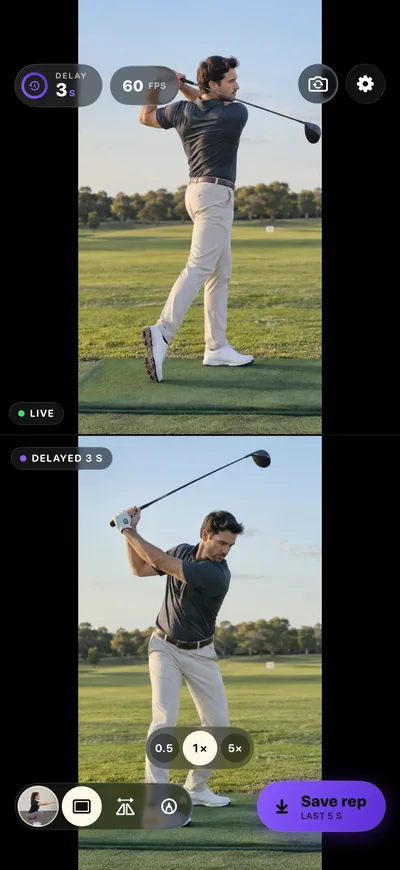
Saved app screen, sample image. 1 Live 2 Delayed 3 s 3 Split-view button Step 3 of 8
See live and delayed side by side
Turn on split view to stack the live camera above the delayed replay. It's handy while you're framing the shot, or when a coach wants to watch the next rep and the last one at once.
Other camera controls work the same way here: the 0.5× and telephoto lenses on iPhones that have them, pinch to zoom, tap to focus and a mirror option. The fps badge shows the capture rate. 30, 60, 120 or 240 fps is available where your camera supports it.
-
Drawing only. No capture of the TV output exists for this walkthrough. Step 4 of 8 · optional
Put the replay on a TV
For a bigger screen, use AirPlay screen mirroring or a compatible HDMI adapter. The TV shows the delayed replay full screen, with your drawings, while the controls stay on your phone.
AirPlay needs both devices on the same Wi‑Fi, and it can add some lag of its own. Do a test rep on the actual TV and adjust the delay. Shared gym Wi‑Fi sometimes blocks AirPlay. A wired adapter avoids that.
Step-by-step connection and troubleshooting: iPhone, iPad and TV setup guide.
-
Saved app screen, sample image. 1 Save rep, set to the last 5 seconds Step 5 of 8
Tap Save rep to keep the one you just watched
Nothing is kept unless you ask. When a replay is worth another look, tap Save rep right away. It keeps the last 5, 10, 15 or 30 seconds, depending on the length you picked in Settings.
The camera delay and the saved length are separate settings. A 60-second delay doesn't give you a 60-second clip, so save soon after the rep plays. To keep a copy in Photos as well, turn on Also save reps to Photos in Settings.
More detail: Save rep, slow motion and Photos copies.
-
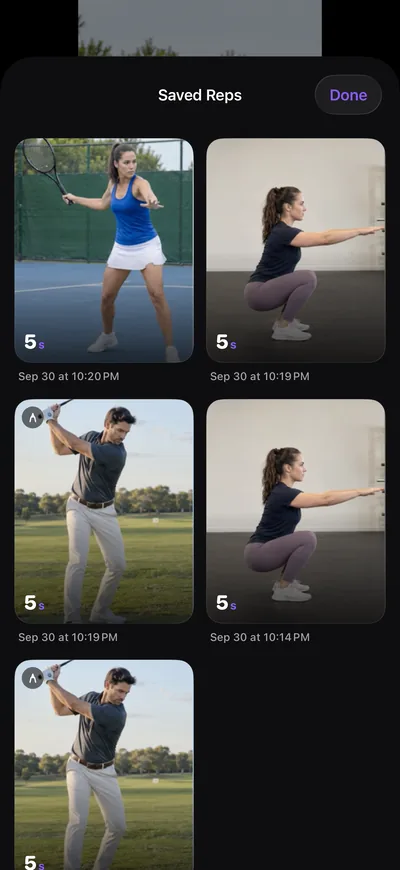
Saved app screen, sample images. 1 A saved golf rep with drawings Step 6 of 8
Open it from your saved reps
Saved reps are kept in the app, newest first, with their length and the time you saved them. Open the library from the camera screen and tap a rep to review it. Check that you kept the moment you meant to.
The other reps on this screen came from the same Simulator session, which also used sample images of tennis and squats.
-
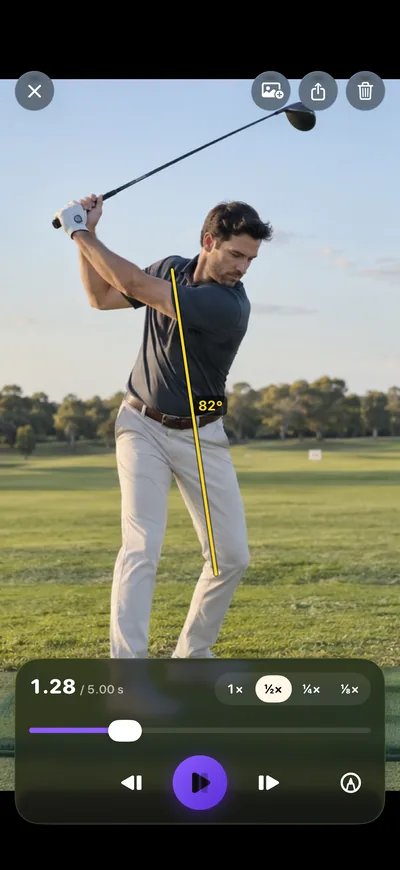
Saved app screen, sample image. 1 Playback speed 2 Frame step Step 7 of 8
Slow it down and step frame by frame
Play the saved rep at 1×, ½×, ¼× or ⅛×. Drag the scrubber, or use the frame-step buttons to stop on the exact frame you want to check.
Slow playback can't add frames the camera didn't capture. Higher capture rates help with fast movement, but they depend on the device, lens and lighting.
-
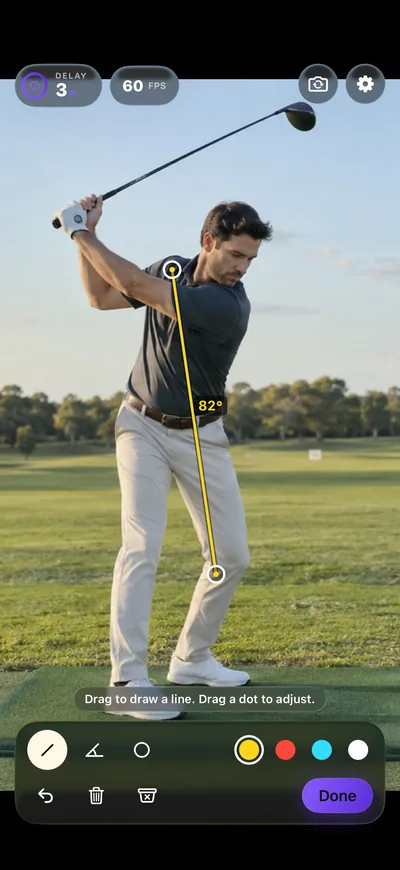
Saved app screen, sample image. 1 Line with its angle 2 Line, angle and circle tools Step 8 of 8
Draw lines, angles and circles
Tap the pencil, then drag to draw a line, an angle or a circle. Drag the dots to adjust it. Lines show their angle, and drawings stay in place for your next session, so a reference line still lines up if the phone hasn't moved.
These are lines you place by hand. They aren't automatic measurements, a form score or coaching advice.
What this walkthrough doesn't show
- A real camera session. The screens use still sample images in the Simulator, not live footage from a phone.
- Real timing or frame rates. Delay accuracy, heat behavior and frame rates on your device aren't shown here.
- TV output. The TV step is a diagram. AirPlay and HDMI behavior depend on your TV, network and adapter.
- The newest layout. Screens come from version 1.0.0. The layout may vary in future updates.
Get the app
Video Delay Instant Replay Cam by David Balderston is $4.99 once in the U.S. App Store; local prices vary. No subscription, in-app purchases, account or ads. Requires iOS/iPadOS 17 or later.
All Video Delay features · Support · Privacy
Practice guides
Hands-free instant replay for sports practice. Set up an iPad or TV replay station. Save a rep for slow motion.