 Video Delay
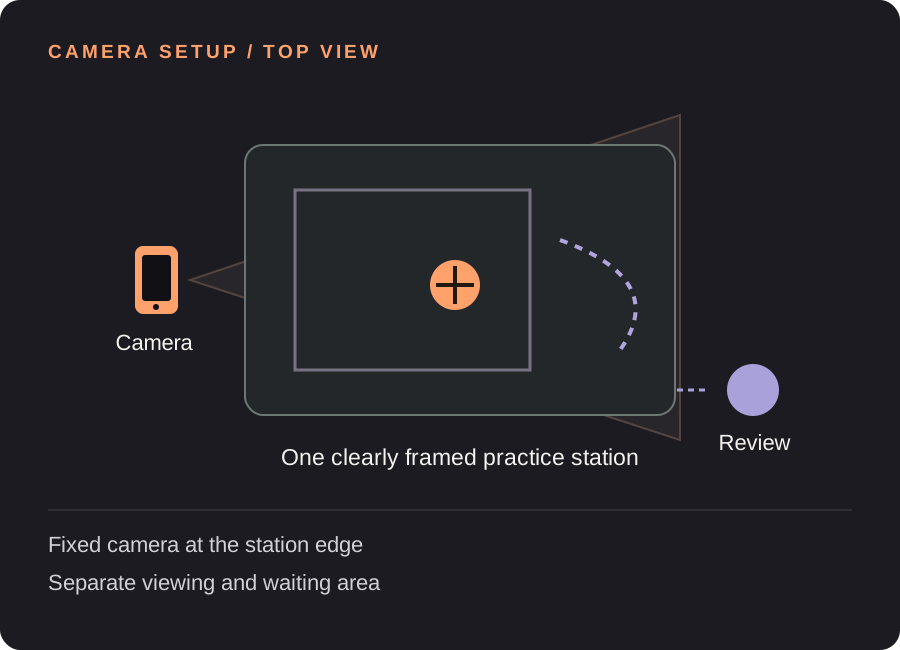
Set up your coaches & pe replay station
Draw the movement and viewing route
Mark where the athlete starts, finishes, watches and rejoins the line. The reviewing athlete should not need to cross an active approach or landing area. Place the camera where it captures the drill without becoming part of the route.
Give the station one question
Choose a short instruction that tells the athlete what to notice on the replay. Keep the station focused on one drill and one visible checkpoint. Different skill levels may need different questions rather than a different app setting.
Time the slowest reasonable return
Measure the drill plus the route to the viewing spot. For an 8-second activity and a 7-second walk, begin around 17 seconds including 2 seconds of margin. Test with the people using the station, then space starts so they can identify their own footage.
Test equipment and decide retention
Check power, framing and display timing before class. For a TV, test the actual AirPlay or compatible HDMI setup. Agree on who may save clips, whether Photos copies are enabled, and how any saved footage will be handled under your organization’s rules.
Find your starting delay. Movement time + time to finish and look + a little margin. Open the free delay planner with this guide’s example. These are starting examples, not measured recommendations for every athlete or room.
A useful loop for the next few attempts
Pilot one complete rotation
Run one participant through the route while someone watches the screen. Confirm that the beginning and end appear after the person arrives. Recheck if you move the camera or change the drill.
Keep feedback brief and specific
Let the participant answer the station’s question before the next attempt. The display is a way to make a visible moment discussable; it is not an automated assessment of every participant.
Close the station deliberately
Stop the camera view when the station is finished and review any deliberately saved clips according to the plan. Temporary replay and saved media are different: copies exported to Photos, backups or another app follow those systems’ settings.
Need the controls first? Walk through the app screens, or read how to save and review a rep.
When the setup does not quite work
| What you notice | What to change |
|---|---|
| The queue blocks the camera | Mark a separate waiting area and check the picture with the whole group in place. |
| Athletes watch someone else’s rep | Adjust both the delay and spacing between starts; changing only one may not fix the rotation. |
| The venue’s display connection fails | Test before the session and keep a workable on-device viewing position as a fallback. |
Coaches & PE replay questions
Does the camera need internet access?
The on-device delayed view works without internet. A wireless display or venue network has separate connection requirements; test those at the location.
Is every participant recorded permanently?
The rolling replay is temporary unless a rep is deliberately saved. Saved clips and optional Photos copies require a separate retention decision. Follow the applicable class, club and participant-permission rules.
Is there a built-in class roster or cloud dashboard?
No. This is a local camera and replay workflow, not a school information system, team roster, remote coaching portal or cloud video archive.
Before the next session
This guide covers camera setup and review workflow. It is not a sport lesson or a claim that a specific setup improves performance. Clips, camera angles and manual drawings need your own interpretation.
Make the next rep easier to see.
Video Delay runs on iPhone and iPad with iOS or iPadOS 17 or later. Choose a 1–60 second delay, then save selected 5, 10, 15 or 30 second reps for slow motion, frame stepping and manual drawings. No automatic form score.
Get Video Delay on the App StoreOne-time paid download. Apple shows your local price before purchase. No subscription or in-app purchases. See the illustrated app walkthrough.