 Video Delay
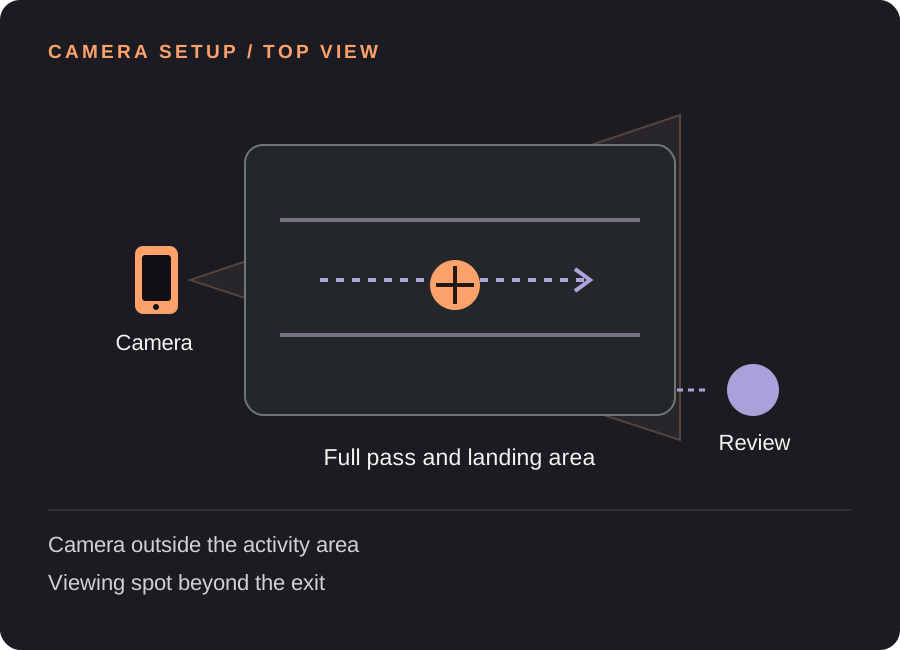
Set up your gymnastics replay station
Frame the complete path
Choose the section of floor, apparatus or drill the coach wants to review. Check the start, highest point and finish with a walk-through. Keep a generous margin for travel; avoid a tight crop that loses hands or feet at the important moment.
Separate filming from viewing
Place the camera outside the approach, landing and spotting areas. Choose a viewing position reached after the athlete has finished. If the small camera screen would make athletes walk back through the drill, use a separate TV or monitor in a suitable location.
Include the walk to the screen
Time the pass and the exit, not just the airborne moment. For an 8-second pass followed by a 6-second walk, try 16 seconds including a 2-second margin. Let one athlete test the route before the group uses it.
Test the station before a rotation
If using AirPlay or HDMI, verify the actual picture and timing on that display. Display transport can add latency. Start with one practice pass and confirm the whole sequence is visible before relying on the station for a busy rotation.
Find your starting delay. Movement time + time to finish and look + a little margin. Open the free delay planner with this guide’s example. These are starting examples, not measured recommendations for every athlete or room.
A useful loop for the next few attempts
Agree on one checkpoint
Have the coach choose the question and viewing angle. The replay shows a camera perspective; it does not score a routine, identify a technical fault automatically or replace a coach’s observation.
Watch from the designated spot
Finish, exit and then review. Keep the approach and landing area clear while another athlete is moving. Allow enough spacing between attempts that each athlete can recognize their own replay.
Save selectively
After a short sequence finishes on the delayed screen, save a clip that contains it. The 30-second maximum saved-rep length suits a short passage, not a complete meet or uninterrupted training session.
Need the controls first? Walk through the app screens, or read how to save and review a rep.
When the setup does not quite work
| What you notice | What to change |
|---|---|
| The landing is out of frame | Check the far end of the drill before the first full-speed attempt. |
| The replay shows the previous athlete | Recheck the delay and space attempts so athletes can identify their own sequence. |
| The TV adds unexpected waiting time | Test that exact AirPlay or HDMI setup and adjust from what appears on the TV, not only the phone. |
Gymnastics replay questions
Does it automatically score gymnastics skills?
No. Video Delay provides delayed video, saved clips, slow motion, frame stepping and manual drawing tools. It does not assign scores or provide automated coaching.
Can a coach put the replay on a TV?
Video Delay supports AirPlay or a compatible HDMI connection. Check display compatibility and test the complete station before practice; no specific TV or adapter is guaranteed by this guide.
Can students use it without saving everyone?
The recent camera view is temporary unless someone chooses Save rep. Set the station’s saving and Photos-copy policy before use, and follow your organization’s rules for filming participants.
Before the next session
This guide covers camera setup and review workflow. It is not a sport lesson or a claim that a specific setup improves performance. Clips, camera angles and manual drawings need your own interpretation.
Make the next rep easier to see.
Video Delay runs on iPhone and iPad with iOS or iPadOS 17 or later. Choose a 1–60 second delay, then save selected 5, 10, 15 or 30 second reps for slow motion, frame stepping and manual drawings. No automatic form score.
Get Video Delay on the App StoreOne-time paid download. Apple shows your local price before purchase. No subscription or in-app purchases. See the illustrated app walkthrough.