 Video Delay
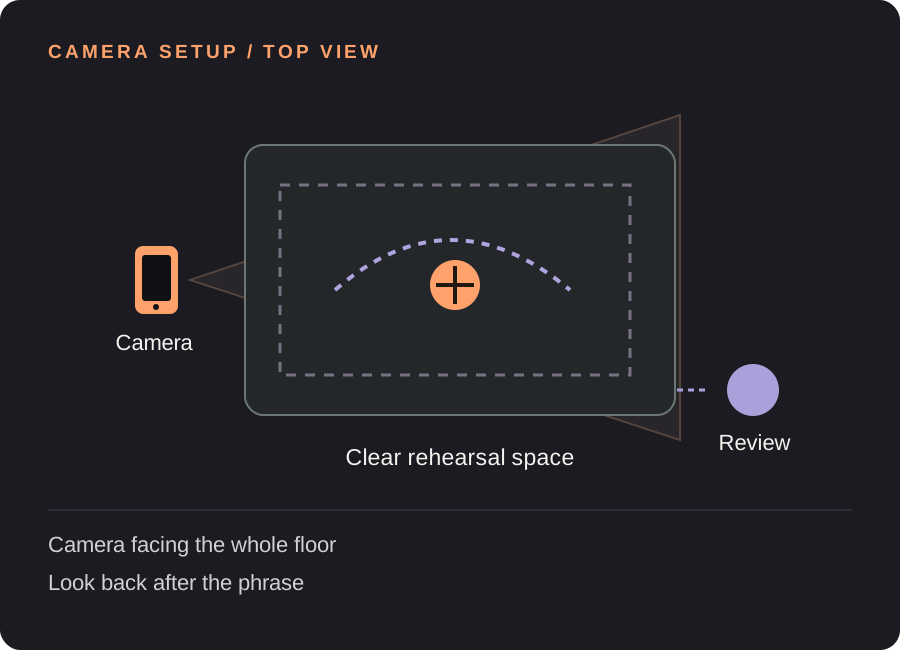
Set up your dance replay station
Frame the travel, not just the starting pose
Put the phone or iPad on a stable support facing the rehearsal space. Walk the furthest edges of the phrase before starting: hands, feet and travelling steps should stay visible. Landscape framing often gives a travelling combination more room; choose the orientation that fits your actual space.
Check left and right before learning the pattern
Raise one hand and check which side appears on screen. Decide whether you want a mirror-like view or the perspective an audience would see, and keep that choice consistent across attempts. An unexpected flipped view can make a familiar sequence look unfamiliar.
Time a phrase and your return to the screen
Measure from the beginning of the phrase until you finish, then add the time needed to settle and look at the screen. A 12-second phrase with a 4-second return and 2 seconds of breathing room suggests an 18-second starting delay. Test it with a marked-through phrase before dancing fully.
Keep a reference frame
Place a small floor marker where the phrase begins and leave the camera fixed. If you move the phone between attempts, changes in perspective can look like changes in line or spacing. Keep the playback screen outside your movement area.
Find your starting delay. Movement time + time to finish and look + a little margin. Open the free delay planner with this guide’s example. These are starting examples, not measured recommendations for every athlete or room.
A useful loop for the next few attempts
Pick one visual question
For example: did the final position arrive together with the rest of the phrase? Choose a visible checkpoint from your teacher or your own rehearsal notes rather than trying to judge every detail at once.
Dance, finish, look
Let the replay run while you perform. Finish and regain your balance before turning toward the screen. Watch the complete phrase before beginning the next attempt so you do not mix the two in your mind.
Keep a short passage
Choose a 15- or 30-second saved-rep length when it covers the passage, then tap Save rep after the passage has finished on the delayed screen. Longer choreography needs a normal recording; a 60-second delay is not a 60-second saved clip.
Need the controls first? Walk through the app screens, or read how to save and review a rep.
When the setup does not quite work
| What you notice | What to change |
|---|---|
| The beginning has already played | Increase the delay to include both the phrase and the time you need to look back. |
| Hands or feet leave the picture | Reframe using the widest step and highest reach, not a standing pose. |
| I need to check musical timing | Use a normal video recording with audio for judging synchronization. This guide is for visual movement review, not a promise of delayed music playback. |
Dance replay questions
Can I use an iPad as a dance mirror?
Yes. Video Delay supports iPadOS 17 or later. Position it where you can see the screen after finishing, or use a compatible external display for a larger replay.
Can it compare me with an instructor video?
This is a delayed camera workflow. It is not a choreography tutorial or a synchronized side-by-side comparison with an imported instructor video.
Can I replay an entire routine?
The adjustable delay is 1–60 seconds and saved reps are 5, 10, 15 or 30 seconds. For a whole routine or a permanent record of an entire class, use a normal camera recording.
Before the next session
This guide covers camera setup and review workflow. It is not a sport lesson or a claim that a specific setup improves performance. Clips, camera angles and manual drawings need your own interpretation.
Make the next rep easier to see.
Video Delay runs on iPhone and iPad with iOS or iPadOS 17 or later. Choose a 1–60 second delay, then save selected 5, 10, 15 or 30 second reps for slow motion, frame stepping and manual drawings. No automatic form score.
Get Video Delay on the App StoreOne-time paid download. Apple shows your local price before purchase. No subscription or in-app purchases. See the illustrated app walkthrough.